Flight screen
The FLIGHT DATA tab: the terrain ahead in 3D, an aviation-style head-up display over it, data cells on both sides, the annunciators, a mini-map, and the command bar along the bottom. This page goes through it element by element.
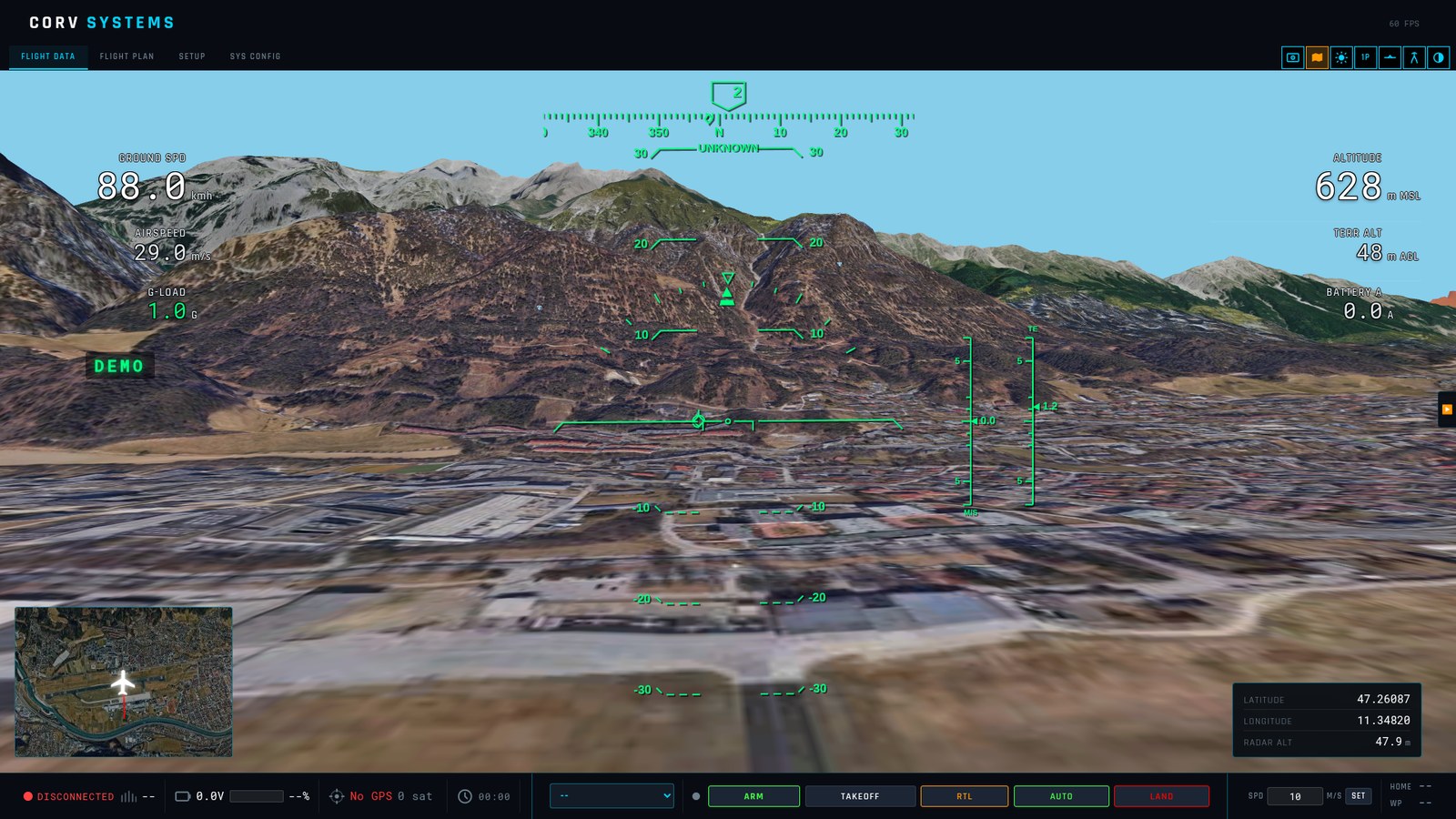
| Where | What | Section |
|---|---|---|
| Top edge of the window | Title bar (minimise, maximise, close) — appears when the mouse reaches the top edge | Window |
| Top, left | CORV SYSTEMS (opens corvsystems.com), the tabs, the FPS counter | Window |
| Top, right | The seven view buttons | View buttons |
| Centre | The HUD over the 3D view | The HUD |
| Left and right of the HUD | Six data cells | Data cells |
| Inboard of the left cells | Annunciators: red warnings, amber cautions | Annunciators |
| Left edge, when on | EKF STATUS bar: three charts of the estimator’s last 20 s | EKF status |
| Left, over the HUD | Autopilot messages | Messages and banners |
| Top centre | LIDAR and ROS strips, when those features are on | Strips |
| Bottom left | Mini-map | Mini-map |
| Bottom right | Rotor load, position, ADS-B traffic table | Bottom right |
| Bottom | Command bar | Command bar |
| Right edge | ◀ arrow: the side panel (vehicle, actions, RTL, target, messages, log replay) | Side panel |
Window, header and tabs
- Title bar: the window has no system frame. Move the mouse to the very top edge and the minimise / maximise / close buttons slide in; the bar is also the drag handle to move the window.
- CORV SYSTEMS (top left) opens the CORV Systems website in the browser.
- FPS (top right of the header): frames per second the 3D view is drawing. 60 is the target (30 with 3D FRAME RATE: 30 FPS (ECO) in SYS CONFIG).
- Tabs: FLIGHT DATA (this page), FLIGHT PLAN (mission planning), SETUP (vehicle setup), SYS CONFIG (GCS settings). Leaving FLIGHT DATA does not stop anything: the link, logging, LiDAR and ROS keep running.
View buttons
The square buttons in the top-right corner. A highlighted button is on. The keys work on the flight screen only, never while typing in a field.
| Button | Key | Off → On |
|---|---|---|
| FPV camera (camera icon) | Cycles three states: 1st click the video stream full screen instead of the 3D view; 2nd click AR — the video with the 3D route, home and HUD blended over it (terrain hidden); 3rd click back to the 3D view. See FPV video. | |
| Satellite (map icon) | M | On: satellite imagery draped on the terrain. Off: the schematic chart — black sky, contour lines, ridge lines (below). |
| Sunlight (sun icon) | L | On (default): sun position and shading for the time of day at the vehicle’s position (the TIME OF DAY slider in SYS CONFIG overrides the clock). Off: flat, even light; with the light off (or the satellite off) the MAP BRIGHTNESS slider appears in SYS CONFIG. |
| 1P / 3P | 1P first-person view from the aircraft’s nose; 3P chase camera behind and above it. The label shows the current view. | |
| Horizon lock | T | In first person, the camera stops pitching with the aircraft: the horizon stays level and only heading and bank show. Useful on a rolling boat or a pitching plane. |
| Trajectory | P | The predicted path ahead: a corridor about 2 m wide at the aircraft widening to 12 m at the end of the prediction, with a cross-bar every 5 s of flight. Built from the current speed, bank (and the bank the autopilot is commanding) and vertical speed; nothing is drawn below 2 m/s. |
| Theme | Dark (default) or light interface. In the light theme the schematic chart becomes green relief under a pale sky. |
First person (1P): hold the arrow keys to look around — up/down pitch the view up to 90°, left/right turn it up to 110°; releasing them returns the view to the nose. The HUD stays fixed to the nose like a glass, so while you look aside it slides off.
Chase view (3P): drag with the mouse to orbit the aircraft, scroll to zoom (50 m to 2.5 km). The camera stays at least 30 m above the terrain under it, except over water, where it can follow a ROV under the surface. Far out, a ring marks the aircraft.
The HUD
Speed, altitude, heading, vertical speed and G-load are drawn the way an airliner’s head-up display draws them, so the picture reads at a glance:
- Pitch ladder and horizon line, rolling with the aircraft; the bank arc with its pointer at the top.
- Flight-path marker (the small circle with wings): where the aircraft is actually moving through the air, with the wind estimate taken out — not just where the nose points. On a crabbing plane it sits off to the side; in a climb it sits above the horizon.
- Speed tape (left) and altitude tape (right), vertical speed beside the altitude, heading tape along the bottom.
- Top line: the flight mode and, in AUTO, the distance to the active waypoint and the cross-track error (how far off the line between waypoints).
- DISARMED banner across the HUD while the motors are disarmed.
- TERRAIN: vehicle SD card not readable when the autopilot’s terrain database is stuck (see mission planning).
Data cells
The six cells beside the HUD (three left, three right). Defaults: Airspeed, Ground Spd, G-Load on the left; Altitude (m MSL), Terr Alt (height above the terrain model, m AGL), LiDAR (the downward rangefinder, m) on the right.
Each cell can show any of: airspeed, ground speed, vertical speed, G-load, altitude MSL, height above terrain, LiDAR/rangefinder, roll, pitch, heading, battery V / A / %, GPS satellites, HDOP, link quality, vibration X / Y / Z, angle of attack, sideslip, RTK baseline and RTK accuracy — with a multiplier (e.g. ×3.6 to show m/s as km/h) and your own unit label. Set them in SYS CONFIG → HUD DATA FIELDS.
Altitude includes the altitude offset set in SYS CONFIG. For a sub the altitude is true MSL and TERR ALT shows minus the depth (see subs and ROVs).
Satellite detail
Around the aircraft the 3D view draws sharper imagery than on the rest of the terrain, up to the zoom chosen in SYS CONFIG → SYSTEM CONFIG → 3D SATELLITE DETAIL:
| Zoom | Ground pixel (mid latitudes) | |
|---|---|---|
| 16 | 1.6 m | Off: the terrain textures alone |
| 17 | 0.8 m | |
| 18 | 0.4 m | Default |
| 19 | 0.2 m | |
| 20 | 0.1 m | The sharpest the imagery has |
The sharper levels cover less ground (zoom 20: about 200 m around the aircraft) and are used only when the camera is close enough to show them: at 1000 m above the ground zoom 17 and 18 are enough. Each step up doubles the detail, and the tiles downloaded when flying low and fast — at zoom 20, 50 m above the ground at 26 m/s, about 0.5 MB/s. The tiles are kept for offline use like those of the 2D map; where none is available the terrain texture shows. RELOADING MAP… in the middle of the screen means the terrain around the aircraft is being rebuilt (a jump to a new area, a log loaded).
Terrain range and haze
The 3D terrain is built out to 35 km around the aircraft, and the haze thickens towards that edge so that the end of the terrain never shows. Satellite imagery covers the nearer 10 km; beyond it the terrain is coloured by height. Both distances are set in SYS CONFIG → SYSTEM CONFIG:
- 3D TERRAIN RADIUS — 35, 50 or 70 km. The haze moves with the edge: at 70 km the ground 25 km away is about a third hazed instead of four fifths at 35 km. Each step loads more elevation tiles and draws more terrain.
- 3D SATELLITE RADIUS — 5, 10, 15, 20 or 30 km. Imagery farther out is drawn at lower zooms: going from 10 to 30 km adds about 15 MB of video memory but about a thousand tiles to download the first time an area is seen.
Schematic chart
With the satellite imagery off (M) the terrain becomes a chart, in the style of the mission simulations in Top Gun: Maverick: black sky, near-black ground with a fixed north-west hillshade, contour lines every 10 m with brighter ones every 50 m and amber ones every 250 m (each level fades out where its lines would crowd), a white line along every ridge that hides the ground behind it and a brighter one along the horizon, a faint 1 km grid, out to 30 km. MAP BRIGHTNESS in SYS CONFIG scales the whole drawing. With the light theme it is green relief under a pale blue sky.
The schematic chart is also where the GCS draws the height cue for flying low, water surfaces and the relative navigation frame — see 3D view, water and ROVs.
What is drawn over the terrain
- Mission route, as the flight plan draws it: plain waypoints with number and height, surveys as dashed passes, circles as rings with the direction of turn, landing and return to launch as flown — details in 3D view, water and ROVs.
- Home: a ring on the ground, a pole and the H symbol.
- Trail: the path already flown, a thick red line. CLEAR TRAIL in the side panel erases it; it also restarts by itself after a jump of more than 2 km (a new connection, a log loaded).
- Target: a red pole with a sphere and a ring, where you placed it from the side panel.
- ADS-B traffic: see below.
- LiDAR point cloud and ROS surface, when enabled (LiDAR, ROS).
- Lines and symbols stay a readable size in pixels at any distance; where the terrain hides them they are drawn again, faint.
ADS-B traffic
Manned aircraft around you, from two sources merged into one list:
| Source | How | Needs |
|---|---|---|
| OpenSky Network | The GCS asks the OpenSky public API every 30 s for the aircraft in a box of ±0.5° around the vehicle (about ±55 km north–south) | Internet on the GCS PC |
| ADS-B receiver on the vehicle | ADSB_VEHICLE messages from an onboard receiver (uAvionix pingRX and similar) through the autopilot, about once a second | The receiver set up on the vehicle — ArduPilot ADS-B receiver |
Where it shows:
- 3D view: each aircraft as a red circle (larger the closer it is), labelled with its callsign (or ICAO address) and its height relative to yours, rounded to 10 m (
+340 m,−120 m), with ↑ / ↓ when it climbs or descends faster than 2 m/s. Behind it, a fading trail of the last 3 minutes, curved through its reports; between reports the circle moves on along its last track for at most 30 s. - Mini-map: red dots, the callsign on hover.
- Traffic table (bottom right): the 4 nearest aircraft — CALLSIGN, ALT (m, its reported altitude) and DIST (km from the vehicle). Empty rows are dimmed.
An aircraft not heard for 60 s disappears. Traffic is hidden in the relative navigation mode (the positions would not be on a real map).
On / off: SHOW ADS-B TRAFFIC in the side panel and ADS-B TRAFFIC in SYS CONFIG → GCS OPTIONS are the same switch (ticking one ticks the other), remembered between sessions. Off stops the OpenSky requests, clears the list and hides the table; the HUD confirms ADS-B traffic enabled / disabled.
The GCS only shows traffic; avoiding it is the vehicle’s job (ArduPilot’s ADS-B avoidance, AVOID_ADSB mode) and the pilot’s.
Annunciators
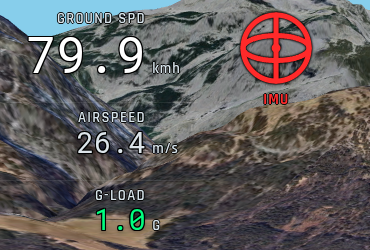
A column beside the speed tape flags anything wrong: red warnings from the top, amber cautions from the bottom. They are the conditions Mission Planner checks, read from SYS_STATUS sensor health, HEARTBEAT, EKF_STATUS_REPORT, VIBRATION, GPS_RAW_INT, RADIO_STATUS and the autopilot’s text messages (a text-triggered flag holds 10 s). Some carry a live value under the label (satellites, HDOP, RSSI or link quality).
Warnings (red):
| Flag | Lights when |
|---|---|
| FAILSAFE | the autopilot reports CRITICAL / EMERGENCY status, or a failsafe message |
| LINK | no heartbeat for 3 s (shows the last RSSI / link quality) |
| RC | RC receiver unhealthy, radio / throttle failsafe |
| EKF | EKF variance above 0.8, or an EKF failsafe message |
| GPS GLITCH | the EKF reports the GPS glitching |
| GPS JAM / SPOOF | the GNSS receiver reports jamming / spoofing |
| GPS | GPS unhealthy or no fix |
| VIBE | vibration above 60 m/s², or accelerometer clipping (held 10 s) |
| IMU, COMPASS, BARO, AHRS, AIRSPD, MOTOR | that sensor or subsystem reported unhealthy |
| BATT | battery unhealthy, critical or in failsafe |
| FENCE | geofence breached |
Cautions (amber):
| Flag | Lights when |
|---|---|
| EKF | EKF variance above 0.5 |
| VIBE | vibration above 30 m/s² |
| 2D FIX | GPS has only a 2D fix |
| HDOP | HDOP above 2.0 |
| PREARM | pre-arm checks failing (the autopilot’s PreArm: message says which) |
| MAG CAL, IMU CAL, BARO CAL | a calibration is in progress |
| BATT LOW | battery below 20 %, or a low-battery message |
| LINK | link quality below 50 % or a weak RSSI |
| TERRAIN | the autopilot’s terrain data unhealthy or missing |
| LOG | onboard logging failing |
| LIDAR, OPT FLOW, PROX | rangefinder, optical flow, proximity sensor unhealthy |
A warning hides its own milder caution (EKF, VIBE, GPS → 2D FIX / HDOP, BATT → BATT LOW, LINK), so a fault never shows twice. The ArduPilot pages on pre-arm checks, vibration and the EKF explain each one.
Click a flag to silence it: it stays hidden until the next connection. Silencing a warning also hides its milder caution; silencing a caution still lets the warning through if the condition gets worse. In the demo flight (no vehicle) a random flag lights now and then, to show where they appear.
EKF status
EKF STATUS in the side panel’s GCS OPTIONS opens a black bar down the left side of the flight view; the 3D view, the HUD and the mini-map move right to make room. It holds three charts of the last 20 s, chosen for the estimator on board, and a header with the solutions the filter itself flags as good (✓, green) or bad (✕, red). Under each chart the legend gives the latest values; with the pointer on a chart, the values at that moment. The charts start empty on every new connection.
ArduPilot (EKF3). While the bar is open the GCS asks for EKF_STATUS_REPORT, AHRS2 and GPS_RAW_INT at 5 Hz (2 Hz otherwise) and puts the default rates back when it closes.
| Chart | What it shows | A sound estimate |
|---|---|---|
| EKF INNOVATIONS | The test ratio of each measurement the EKF fuses — velocity, horizontal and vertical position, compass, airspeed (TAS, only with an airspeed sensor) — from EKF_STATUS_REPORT: how far the measurement lands from the prediction, scaled by its gate. Dashed lines at 0.5 and 0.8, the levels Mission Planner colours amber and red; at 1 the measurement is rejected. TERR is the terrain (rangefinder) ratio. | All lines under 0.5. A GPS glitch shows as POS H shooting up, with GPS GLITCH in the header. |
| GPS ACCURACY | The receiver’s own horizontal and vertical accuracy in metres (and speed accuracy in m/s, when it reports one), from GPS_RAW_INT. Receivers that report no accuracy: HDOP instead. Nothing is drawn without a fix. FIX, SATS and HDOP above. | Flat and small (RTK: centimetres). The receiver does not know about a glitch: compare with POS H above. |
| ATTITUDE EKF vs DCM | Roll, pitch and yaw of the estimator flying the aircraft minus the backup one (AHRS2): the DCM while the EKF is active, the EKF after a fall back to DCM. VIBE (m/s² on x/y/z, amber over 30, red over 60) and CLIP (accelerometer clipping) above. | Within a degree or two. Several degrees in a sustained turn usually means the DCM is the one off; a step when the autopilot says AHRS: DCM active. |
CORV board (RBPF). The particles carry the attitude, each with its own EKF for velocity and position, and one shared EKF holds the sensor biases. The charts come from the Navigation, Debug and Raw Sensor packets (BINARY_TELEMETRY.md); the header shows INIT, CONV, GPS, IMU1, IMU2, BARO, MAG, and ZUPT, GPS BYPASS, JAMMING, SPOOFING when they are set.
| Chart | What it shows | A sound estimate |
|---|---|---|
| POSITION | GPS − PF: the raw GPS fix against the filtered position at the same board time, horizontal metres. PF SPREAD: the spread of the particle cloud. GPS H ACC, GPS V ACC: the receiver’s accuracy. | The residual inside the receiver accuracy and the spread. Without GPS the residual stops, the spread grows; when GPS returns the residual jumps and settles in a few seconds. |
| PARTICLE FILTER | ESS / N: effective sample size over the number of particles, in %. CONFIDENCE of the solution, in %. The dashed line at 50 % is the default resampling threshold; the ticks along the bottom are resamples. N, ESS and resamples per second above. | ESS falling with each GPS update and jumping back at each resample; confidence steady near the top. |
| SHARED EKF tr(P) | Trace of the shared EKF’s covariance, on a logarithmic scale. GYRO BIAS (largest axis), MAG Q (magnetometer quality, amber under 0.5) and AIDING (GPS+MAG, GPS, MAG, DEAD RECKONING) above. | Flat after convergence; it grows while an aid is missing and comes back down after. |
Messages and banners
- Autopilot messages (
STATUSTEXT) appear over the HUD on the left and fade after a few seconds; errors and critical messages in red, warnings in amber. GCS notices (connections, toggles, command results) appear there too. The whole history is in MESSAGE LOG in the side panel. - Mode banner: on every mode change the new mode flashes large in the middle of the screen for 2.5 s, in the colour of its kind (yellow manual, cyan assisted, green automatic, orange return / land).
- Command result toast: every command the autopilot answers (
COMMAND_ACK) shows briefly asCOMMAND: RESULT— green ACCEPTED / IN_PROGRESS, red DENIED / FAILED / TEMPORARILY_REJECTED.
LiDAR and ROS strips
Two thin strips at the top centre, shown only while their feature is on:
- LIDAR — state LED, state (ACCUMULATING, LIVE ONLY · reason, DEMO…), point count, CLEAR MAP, SAVE (
.ply). See LiDAR point cloud. - ROS — state LED, state, cells / coverage, GRAY / DIST / ROUGH colour, VIEW ON / OFF, CLEAR. See ROS surface.
Mini-map
Bottom left: the vehicle, its track, home, the mission, ADS-B traffic and the target on satellite imagery. It grows when the mouse is over it. Click it to swap it with the 3D view (the map becomes the main view); click the 3D view (now small) to swap back. In the relative navigation mode the map is empty (no real position to show).
LTE cells
With an LTEtelem cellular module (SETUP → COMMS → CELLULAR LINK) the module reports the LTE cell it is camped on every 2 s (CORV_CELL_INFO). While these reports arrive the map shows:
- the cell sites within 10 km of the vehicle — white dots for the network of the serving cell, grey for the other operators when ALL OPERATORS is on; hover a dot for the operator, the eNB and its sectors. The serving site is shown however far it is;
- the serving site as a ring, joined to the vehicle by a dashed line: the mast that carries the link. Its colour is the link quality: green with RSRP from −100 dBm and SINR (averaged over the last readings) from 5 dB, red under −110 dBm or 0 dB or with no cell report for 5 s, orange in between;
- the cell figures (operator, frequency, signal, neighbours, cell changes, distance to the mast) are in the position panel, not on the map.
The 3D view shows the same sites (the serving one and those within 10 km) as thin red poles 10 m tall on the terrain, and, in the chase view, the same dashed line in the same colour from the vehicle to the top of the serving pole (fainter where the terrain hides it). The first-person view has no line: it would start at the camera; the mini-map always shows it. A pole appears once the elevation tile under it is loaded.
Positions are estimates from crowd measurements, often a few hundred metres off, not surveyed masts. Italy, San Marino and Vatican City come with the installer and work offline: about 580,000 LTE cells merged from OpenCelliD (the export of the installer’s date and the June 2024 copy, CC BY-SA 4.0) and the final export of the Mozilla Location Service (March 2024, public domain), which holds many sites OpenCelliD never had. Elsewhere the cells within 100 km of the vehicle are downloaded on their own from the June 2024 OpenCelliD copy and kept on disk. When the serving cell is in none of these:
- it is searched by its cell identity under the other networks of the country: a cell shared by two operators (Iliad and WindTre, TIM and Vodafone in small towns) is often listed under the partner’s code. The CELLULAR LINK page then says shared cell, listed under …;
- if still missing it is looked up online in beaconDB (and in the OpenCelliD API first, with a token), only that cell’s identifiers being sent, and kept on disk.
The CELLULAR LINK page shows the serving cell and the neighbours in detail, where each position comes from, the databases in use, and turns the overlay off with SHOW CELL SITES ON THE MAP; there you can also add newer data: DOWNLOAD FROM OPENCELLID (today’s file of a country, with a free OpenCelliD token) or IMPORT CSV (any file in the OpenCelliD or MLS layout).
Bottom right: rotor load, position, traffic
| Panel | |
|---|---|
| ROTOR LOAD | For multirotors: a schematic of the frame with each motor coloured by its output — blue stopped, green, orange, red as the PWM rises past the thresholds. A motor that runs much harder than the others shows a weight imbalance, a failing motor or a bent arm. Plane and helicopter show the main rotor only. On/off with SHOW ROTOR LOAD in the side panel or in SYS CONFIG; frame and thresholds in SYS CONFIG → ROTOR LOAD. |
| Position | LATITUDE and LONGITUDE. In the relative navigation mode: VX · NORTH, VY · EAST, VZ · DOWN velocities in m/s instead. On the cellular link, while the module reports its cell, also: LTE CELL (operator, eNB/sector), FREQ · PCI (downlink carrier frequency in MHz, from the EARFCN; the band, e.g. B20, if the frequency is not known), RSSI (the same value as the signal in the command bar), RSRP · SINR, NEIGHBOURS (cells the modem measures besides the serving one), CELL CHANGES since the module started, MAST DIST (to the serving site of the mini-map; NOT IN DB when the site is neither in the cell database nor found online). The cell rows turn amber for 5 s after a cell change; LTE OVERLAY in the side panel’s GCS OPTIONS hides them. The rangefinder distance is in the HUD cell LiDAR. |
| Traffic | The 4 nearest ADS-B aircraft — see ADS-B traffic. Hidden when ADS-B is off. |
Command bar

Left to right:
| Heartbeat dot | Green and pulsing while heartbeats arrive from the vehicle; red when none has arrived for a few seconds (or no link). |
| Link | DISCONNECTED, or the link type and the data rate received (SERIAL 4.2 kbps, UDP, TCP, LTE). |
| Signal bars | Five bars, green / orange / red: the radio RSSI (RADIO_STATUS, SiK-style radios) — the number beside them, and R: the remote end’s RSSI — or, without a radio report, the link quality in %. On a cellular link the LTE signal in dBm. |
| Battery | Voltage, a bar and the percentage — from the vehicle, or computed from the voltage range set in SYS CONFIG → GCS OPTIONS when the vehicle reports none. |
| GPS | Fix type — colour: green RTK fixed, yellow RTK float, cyan 3D / DGPS, red below — satellites, HDOP. A fix older than 5 s shows as No GPS. |
| Timer | Flight time: counts while armed (cyan), pauses when disarmed, adds up over the session. |
| Target | Shown when a target is set: a red arrow pointing to it relative to the vehicle’s heading, and the distance. See side panel → TARGET. |
| Flight mode | The current mode, coloured by kind — yellow manual, cyan assisted, green automatic, orange return / land — and the list to change it. See Flight modes. |
| Pre-arm dot | Green: pre-arm checks pass (or armed); red: the autopilot reported a pre-arm failure; grey: unknown yet. |
| ARM / DISARM | Asks for confirmation (MAV_CMD_COMPONENT_ARM_DISARM) and says whether the pre-arm checks pass. FORCE ARM skips the checks — only if you know which one fails and why. DISARM is refused by the autopilot while flying; FORCE DISARM cuts the motors at once, in flight too: the vehicle falls. |
| TAKEOFF | Asks for a height above ground (default 10 m), switches to GUIDED, arms the motors if they are not armed, and sends MAV_CMD_NAV_TAKEOFF to that height (a Copter take-off). |
| RTL | Return to launch mode, at once, no confirmation. |
| AUTO | AUTO: fly the mission loaded on the vehicle. |
| FBWA | Planes only: Fly-By-Wire A, the stabilised manual mode to take over. |
| POSHOLD | Copters only: PosHold, stop and hold position. |
| LAND | LAND mode at once — land where it is. |
| SPD … SET | Target speed in m/s, sent as MAV_CMD_DO_CHANGE_SPEED with SET or Enter; the label flashes SET when sent. Changes the speed of the mission being flown (or of GUIDED). |
| Home / WP | Straight-line distance to home; active waypoint / number of mission items. |
The flight buttons do nothing with no vehicle connected or on a CORV binary link (telemetry only).
FPV video
The FPV button shows an RTSP camera stream (SIYI HM30 / A8 and similar; address, port, path and frame rate in SYS CONFIG → SIYI CAMERA STREAM), decoded in hardware when the PC can; ffmpeg must be installed and in the PATH. A status line in the middle says when the stream is starting or cannot be reached. In AR mode the 3D view is blended over the camera image with the terrain hidden, so the route and the HUD overlay the real picture.
Logs and replay
Every connection is recorded as a MAVLink .tlog from the moment the link comes up, in data/logs; the mission library lists them. In the side panel, LOG REPLAY → OPEN LOG FILE… replays a .tlog or an ArduPilot DataFlash .bin on the same screen. A timeline appears at the bottom right: ▶ / ❚❚ play and pause, the scrubber to jump anywhere, elapsed and total time, × to unload. Replay is available while no vehicle is connected. ArduPilot’s logs page explains the two kinds of log.